

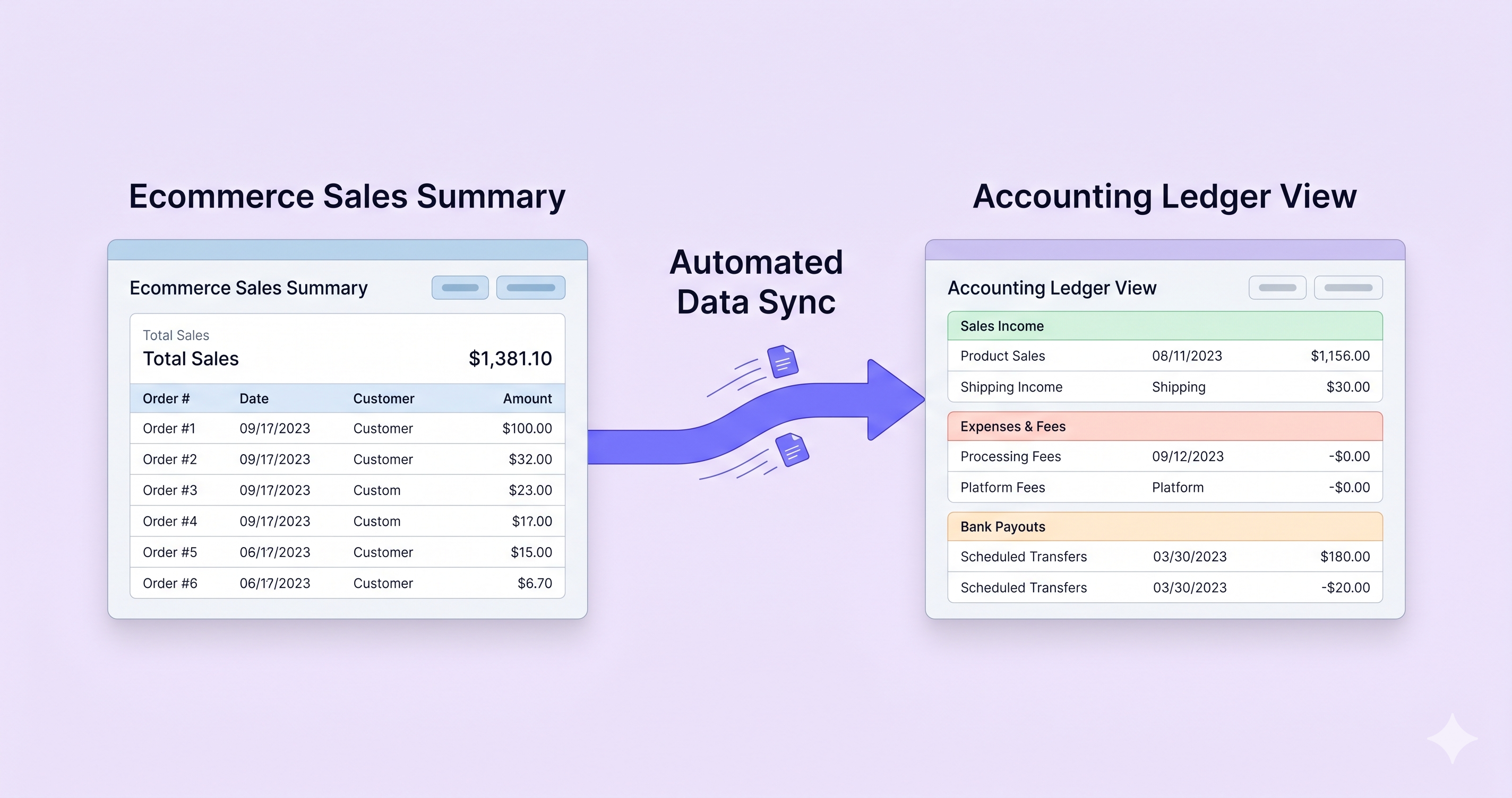
Managing ecommerce finances requires accurate bookkeeping and clear transaction tracking. When businesses sell through Shopify, all sales, refunds, fees, and payouts must be properly recorded in accounting software to maintain reliable financial reports.
QuickBooks is one of the most widely used accounting platforms for managing ecommerce bookkeeping. Many businesses use it as a central system to track income, expenses, and financial performance. Because Shopify processes payments and payouts separately, store owners often need to understand how to record Shopify sales in QuickBooks correctly.
Recording Shopify transactions involves several steps, including entering sales data, categorizing fees, and reconciling payouts. When these processes are organized properly, companies can maintain a consistent ecommerce accounting workflow and ensure their financial records remain accurate.
Recording Shopify Sales in QuickBooks
Shopify automatically processes customer payments, collects transaction fees, and sends payouts to the business bank account. However, accounting platforms like QuickBooks require these transactions to be recorded correctly in order to reflect accurate revenue and expenses.
The process of recording Shopify sales usually includes:
- importing or entering sales data
- categorizing transaction fees
- reconciling payouts with bank deposits
- organizing transactions within an ecommerce accounting workflow
Without accurate sales data synchronization, accounting records may not match actual Shopify payouts. This can create discrepancies between recorded revenue and deposited funds. For this reason, businesses often integrate their Shopify store with QuickBooks or manually record transactions to maintain consistent financial reporting.
Why Shopify Sales Must Be Recorded in QuickBooks
Recording Shopify transactions in QuickBooks is important for maintaining accurate financial management and reporting. Ecommerce platforms handle transactions differently from traditional retail systems, which makes structured bookkeeping especially important.
Properly recording Shopify sales helps businesses achieve several objectives:
- maintain accurate financial statements
- track revenue across different sales channels
- monitor transaction fees and payment processing costs
- simplify tax reporting and financial analysis
Another important reason is sales channel accounting. Many ecommerce businesses sell through multiple platforms, and QuickBooks helps consolidate financial data into one accounting system.
When Shopify sales are recorded correctly, businesses can also perform reliable Shopify payout reconciliation — ensuring that payouts received from Shopify match the sales and fees recorded in accounting reports.
How to Record Shopify Sales in QuickBooks Online
Many ecommerce businesses use QuickBooks Online as their primary accounting platform. When learning how to record Shopify sales in QuickBooks Online, the main goal is to ensure that sales data and payouts match accurately.
A typical process for how to enter Shopify sales into QuickBooks includes the following steps:
- Export Shopify sales data — Shopify provides reports showing daily or monthly sales totals, taxes collected, and transaction fees.
- Import sales data into QuickBooks Online — Businesses can manually enter the information or use a QuickBooks ecommerce integration to automate the process.
- Match transactions with Shopify payouts — The recorded revenue should correspond with the payout reports generated by Shopify.
- Verify financial records — After transactions are entered, review reports to confirm that recorded income matches the payouts received.
Some businesses use automated sales recording tools to simplify this process. Automation connects Shopify with QuickBooks and synchronizes transactions automatically — reducing manual work and maintaining accurate financial records through reliable sales data synchronization.
How to Record Shopify Sales in QuickBooks Desktop
Companies that use QuickBooks Desktop follow a slightly different process when recording ecommerce transactions. Because the desktop version does not always include built-in ecommerce integrations, sales data may need to be entered manually.
To record Shopify sales in QuickBooks Desktop, businesses typically perform the following steps:
- create a sales receipt for Shopify revenue
- enter total sales from Shopify reports
- record taxes collected from customers
- enter Shopify transaction and payment processing fees
- match the final payout amount with the bank deposit
This approach ensures that Shopify sales, fees, and payouts are correctly represented in financial records. Although the process may require more manual effort than cloud integrations, it still allows businesses to maintain an accurate ecommerce accounting workflow.
How to Categorize Shopify Sales and Fees in QuickBooks
Correct categorization is essential when managing ecommerce bookkeeping. Businesses need to understand how to categorize Shopify in QuickBooks so that financial reports accurately reflect revenue and expenses.
Typical Shopify accounting categories include:
- Shopify sales revenue
- Shopify transaction fees
- payment gateway processing fees
- shipping income
- refunds and adjustments
Many businesses also ask how to categorize Shopify fees in QuickBooks. These fees typically include payment processing charges and Shopify transaction fees that reduce the final payout amount.
Creating clear categories helps accountants separate revenue from expenses and maintain organized financial reports. It also improves visibility into operating costs and helps businesses analyse profitability more effectively.
Shopify Sales Journal Entry Example in QuickBooks
When recording Shopify sales in QuickBooks, the bank deposit should not automatically be treated as total revenue. A Shopify payout may already have refunds, processing fees, and other deductions removed before the money reaches the bank.
A simple journal entry can separate these components so the accounting records show both gross sales and the actual payout amount.
For example, assume Shopify reports the following activity for one payout period:
| Shopify transaction | Amount | QuickBooks treatment |
|---|---|---|
| Gross Shopify sales | $5,000 | Sales revenue |
| Refunds | -$300 | Refunds / contra-revenue |
| Shopify fees | -$150 | Payment processing or Shopify fees expense |
| Sales tax collected | $400 | Sales tax liability |
| Net payout | $4,550 | Shopify clearing / bank deposit |
The important point is that the $4,550 payout is not the same as $5,000 in Shopify sales. QuickBooks should retain the individual components so revenue, expenses, liabilities, and cash can be reconciled correctly.
For businesses using a Shopify clearing account, the sales activity can first be recorded against the clearing account. When the Shopify payout reaches the bank, the deposit is then matched against that balance.
This approach makes it easier to identify missing refunds, fees, or adjustments instead of treating every difference as a banking error.
How to Reconcile Shopify Payouts in QuickBooks
Reconciliation is one of the most important steps in ecommerce accounting. Businesses need to ensure that payouts received from Shopify match the sales and expenses recorded in QuickBooks. The process of how to reconcile Shopify in QuickBooks typically involves comparing Shopify payout reports with accounting records.
A typical reconciliation workflow includes the following steps:
- Review Shopify payout reports
- Compare recorded sales with payout totals
- Adjust fees and refunds recorded in QuickBooks
- Confirm that the final payout matches the bank deposit
This process — known as Shopify payout reconciliation — ensures that accounting records match actual financial transactions. Without it, discrepancies may occur between sales reports and bank deposits, making financial analysis more difficult.
Common Shopify QuickBooks Recording Mistakes to Avoid
Even when Shopify is connected to QuickBooks correctly, accounting records can become inaccurate if sales, fees, refunds, and payouts are handled using different methods. Several mistakes are especially common in ecommerce bookkeeping.
- Recording the net Shopify payout as total sales. The bank deposit represents the amount received after deductions, not the store's gross revenue.
- Posting Shopify fees to the wrong account. Payment processing and Shopify transaction fees should be separated from sales revenue so operating costs remain visible.
- Ignoring refunds and adjustments. These transactions can reduce the payout without reducing the original sales figure in the same way.
- Creating duplicate transactions. Manual entries combined with automatic Shopify or bank-feed imports can cause the same sale or payout to be recorded twice.
- Failing to use a clearing account when the workflow requires one. A Shopify clearing account can separate sales activity from the later bank payout and make reconciliation easier.
- Using inconsistent dates or reporting periods. Shopify sales and bank payouts can occur on different dates, so comparing the wrong periods can create apparent discrepancies.
A useful final check is to compare Shopify's sales activity, deductions, and net payout with the corresponding QuickBooks records. If the amounts do not reconcile, review refunds, fees, adjustments, and duplicate entries before making a manual correction.
Using Shopify Connector by QuickBooks
To simplify accounting processes, some businesses use integration tools such as Shopify Connector by QuickBooks. These tools automate the process of importing ecommerce transactions into accounting software.
The main benefit is automated sales recording. Instead of manually entering transactions, the integration automatically transfers Shopify sales data into QuickBooks.
Common benefits of using a Shopify integration include:
- automated sales recording
- real-time sales data synchronization
- simplified Shopify payout reconciliation
- reduced manual bookkeeping work
In addition to native integrations, many businesses use NeonPanel's QuickBooks Online integration to automate Shopify bookkeeping. NeonPanel syncs inventory, COGS, and financial data directly into QuickBooks — with structured, accounting-friendly formatting that reduces manual adjustments and improves reconciliation accuracy across multiple sales channels.
Compared to standard connectors, NeonPanel places greater emphasis on data accuracy and reporting clarity — particularly valuable for businesses handling high transaction volumes or selling across multiple platforms.
Conclusion
Recording Shopify sales in QuickBooks is an essential part of maintaining accurate ecommerce financial records. Businesses must ensure that sales, fees, and payouts are properly entered into their accounting system.
The process typically includes recording sales transactions, categorizing Shopify fees, and reconciling payouts with bank deposits. When performed consistently, these steps create a reliable ecommerce accounting workflow that supports clear financial reporting.
Businesses can manage this process manually or automate it using integration tools that connect Shopify with QuickBooks. In both cases, accurate transaction tracking helps companies maintain better financial visibility and improve overall accounting efficiency.